If you have ever uploaded a profile photo to Instagram and wondered why it looked soft, cropped strangely, or less polished than expected, the issue often comes down to size. Many people search for what size is an Instagram profile picture because Instagram displays profile images in a small circular frame, but the image you upload still needs enough resolution to stay clear across devices.
Your profile picture is one of the first things people notice. It appears on your profile, next to comments, in Stories, in search results, and beside direct messages. For creators, brands, small businesses, and personal accounts, that tiny image carries a lot of visual weight. The right dimensions help your face, logo, or brand mark look clean instead of cramped. This article explains the ideal Instagram profile picture size, how cropping works, which file types perform best, and how to prepare an image that looks professional everywhere Instagram shows it.
Instagram Profile Picture Size in Pixels
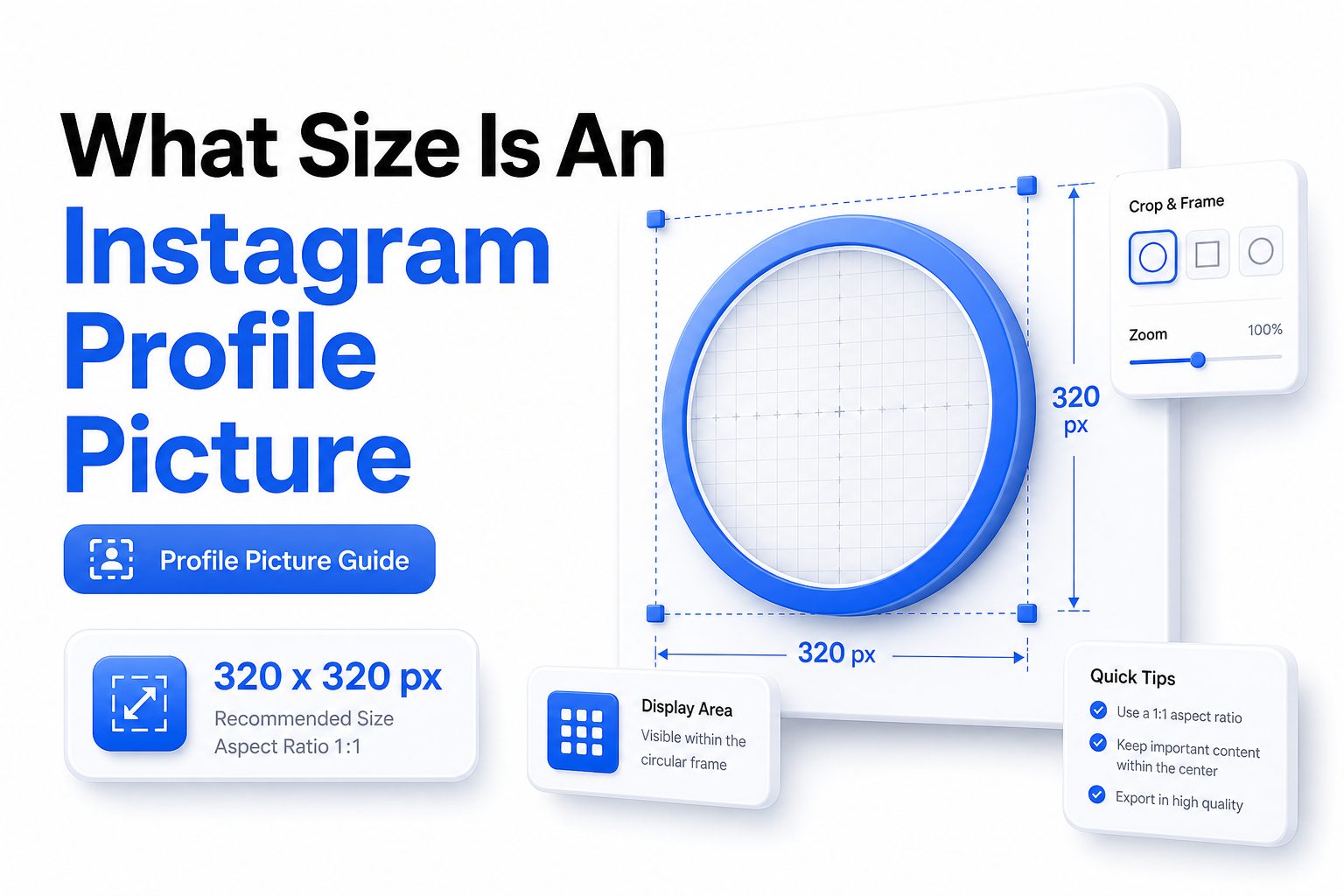
The recommended Instagram profile picture upload size is 320 x 320 pixels. Instagram displays profile photos at smaller sizes in the app, but uploading at 320 x 320 gives the platform enough image data to resize it cleanly without visible blur.
Although the image is uploaded as a square, Instagram shows it inside a circle. That means the corners of your photo will not be visible on your profile. Keep the most important part of the image centered so it remains visible after cropping.
Why Profile Picture Size Matters
A profile photo may be small, but it influences trust quickly. A blurry logo, poorly cropped face, or low-resolution image can make an account look neglected. People often make split-second judgments before reading a bio or scrolling through posts.
Good sizing also supports brand consistency. If your profile image matches the quality of your posts, highlights, and website visuals, your account feels more intentional. For businesses, that can help create a stronger first impression when users find you through search or recommendations.
Quick Size Checklist
- Recommended upload size: 320 x 320 pixels
- Minimum practical size: 110 x 110 pixels
- Best shape before upload: square
- Display shape on Instagram: circle
- Best file formats: JPG or PNG
- Best logo format: PNG
- Best photo format: JPG
- Keep faces, icons, and text centered
- Avoid placing important details near corners
Best Upload Dimensions for Sharp Results
While 320 x 320 pixels is the standard recommendation, uploading a larger square image can also work well. A 1000 x 1000 pixel image gives Instagram more room to compress and resize, especially if the original file is high quality and not overly edited.
The key is to avoid uploading images that are too small. If you upload a 100 x 100 pixel image, Instagram may enlarge or compress it in ways that make edges look rough. Starting with a clean square image gives you better control.
How Instagram Crops Profile Pictures
Instagram crops profile photos into a circle, even though the source image is square. This matters because anything placed too close to the corners will disappear. A logo with long horizontal text, for example, may become unreadable inside the circular frame.
For portraits, position the face in the center with some breathing room around the head and shoulders. For logos, use a simplified mark when possible. Detailed badges, slogans, or thin lettering rarely display well at profile picture size.
Comparison Table
Image Type | Recommended Size | Best Format | Main Tip
Personal photo | 320 x 320 or larger | JPG | Center the face clearly
Business logo | 320 x 320 or larger | PNG | Use a simple icon or mark
Creator brand image | 500 x 500 or larger | PNG or JPG | Keep colors and contrast strong
Text-based logo | 1000 x 1000 | PNG | Avoid small words
Product image | 500 x 500 or larger | JPG | Use a close crop with clean background
Choosing the Right File Format
JPG is usually the best choice for personal photos because it handles natural colors, skin tones, and backgrounds efficiently. A high-quality JPG keeps the file size manageable while preserving enough detail for Instagram’s small display areas.
PNG is often better for logos, icons, and graphics with flat colors. It can keep sharp edges cleaner than JPG, especially around text or simple brand marks. If your profile picture includes transparency, export it on a solid background before uploading.
Recommended File Quality Settings
When exporting your image, use high quality rather than maximum compression. A heavily compressed photo may show blocky textures after Instagram processes it. For most users, a JPG quality setting around 80 to 90 percent works well.
File size rarely needs to be huge. A clean square image under a few megabytes is enough for a profile picture. Very large files may still be compressed by Instagram, so focus on clarity, centering, and strong contrast instead of oversized exports.
How to Prepare a Personal Profile Photo
For a personal Instagram profile, a clear headshot usually works best. Use good lighting, a simple background, and a crop that keeps your face recognizable at a small size. Avoid full-body shots because facial details become too tiny in comments and search.
Leave space around your head so the circular crop does not cut into your hair, chin, or shoulders. If your background is busy, slightly blur it before upload or choose another image. The goal is quick recognition, not maximum detail.
How to Prepare a Business Logo
Business accounts should avoid using complex horizontal logos as profile pictures. Instagram’s circle is not friendly to long wordmarks. A square icon, brand symbol, monogram, or simplified logo mark usually performs better than a full logo lockup.
If your brand only has a horizontal logo, create a profile-specific version. Use the main symbol, initials, or a stacked layout. Keep enough padding around the design so it does not feel squeezed inside the circular crop.
Profile Picture Preparation Tips
- Use a square canvas before uploading
- Place the subject in the exact center
- Add padding around logos and faces
- Test the image at a very small size
- Increase contrast if details disappear
- Avoid thin lines and tiny lettering
- Use brand colors consistently
- Preview the circular crop before saving
Common Mistakes That Make Profile Pictures Look Blurry
One common mistake is taking a tiny image from a website, screenshot, or old social profile and uploading it again. Each save, screenshot, and compression step can reduce quality. Always start from the highest-quality original image you have.
Another issue is over-editing. Heavy sharpening, filters, grain, and contrast effects may look interesting at full size but messy in a profile circle. A clean, simple image usually looks better than a stylized one when reduced to a small display.
Why Text Often Fails in Instagram Profile Photos
Text is difficult to read in Instagram profile pictures because the display size is small. Even if the text looks fine while editing, it may shrink dramatically in the app. Thin fonts, long names, and taglines are especially likely to become unreadable.
If you must use letters, keep them bold and minimal. Initials, a short monogram, or one large character can work well. For brand names, it is often better to use the logo mark and let your username and bio handle the text.
Testing Your Image Before Uploading
Before uploading, preview your image at 110 x 110 pixels and 40 x 40 pixels. These smaller previews show how your profile picture may appear beside comments, notifications, and direct messages. If it still looks recognizable, your image is likely strong.
You can also place a circular crop overlay on the image before export. Many design tools, photo editors, and social media templates include this feature. It helps you catch cut-off logos, awkward framing, or details that sit too close to the edge.
Profile Picture Sizing for Brands and Creators
Creators need a profile photo that is recognizable across platforms. If you use the same image on Instagram, TikTok, YouTube, and X, keep the composition simple enough to work in every circular or rounded display. Consistency makes your account easier to identify.
Brands should treat the Instagram profile picture as part of the visual identity system. The image should align with website colors, packaging, ads, and other social channels. For more planning around social visuals, see [Internal Link: Social Media Image Sizes].
Important Facts to Remember
- Instagram profile pictures appear as circles, not squares
- Uploading a square image gives the cleanest crop
- The visible area is smaller than the original canvas
- Logos need extra padding around the edges
- Simple images outperform detailed designs
- High contrast helps small images stay readable
- A larger source file can help if it remains sharp
- Profile images should match your broader brand style
Using Canva, Photoshop, or Other Design Tools
Most design tools make it easy to create a square Instagram profile image. Set the canvas to 320 x 320 pixels or larger, then place your photo or logo in the center. Use alignment guides so the main subject is not slightly off balance.
If you use Canva, start with a square template and preview the image as a circle before downloading. In Photoshop, use a circular shape guide on top of the square canvas. Keep the guide on a separate layer and hide it before export.
Mobile Editing Tips for Better Results
Editing on a phone is fine as long as you avoid saving the image repeatedly across multiple apps. Each export can reduce quality. Make your crop, brightness, and background edits in one tool, then save the final version once.
When choosing a mobile photo, zoom out slightly before cropping. A tightly framed selfie can look too close once Instagram applies the circular crop. A little extra space creates a more polished result, especially for professional or creator accounts.
Accessibility and Recognition
A good profile picture should be easy to recognize quickly. High contrast between the subject and background helps users identify the account faster. This is especially useful for people browsing search results, comment threads, or busy feeds.
Avoid visual clutter that makes the image hard to interpret. If your logo has multiple colors, thin outlines, or layered graphics, simplify it for Instagram. Better recognition can support clicks, follows, and brand recall over time.
Profile Picture Style Choices That Work
Clean backgrounds usually perform better than detailed scenes. For personal accounts, natural light and a calm background keep attention on the face. For brands, a solid brand color behind a white or dark logo can make the image stand out.
Color also matters. Your profile picture sits beside your username, bio, highlights, and posts. Choose colors that fit your overall page rather than clashing with it. A consistent look can make your profile feel more credible and easier to remember.
Design Dos and Don’ts
Do:
-
- Use a centered square image
- Keep the main subject large and clear
- Choose strong contrast
- Test the image at small sizes
- Use a simplified logo for business accounts
Don’t:
- Upload a low-resolution screenshot
- Place text near the edges
- Use a full horizontal logo
- Overload the image with details
- Rely on filters that reduce clarity
How Often to Change Your Instagram Profile Picture
You do not need to change your profile photo often. In fact, changing it too frequently can make your account harder to recognize. For personal brands, creators, and businesses, consistency is usually more valuable than constant refreshes.
Update your profile picture when your branding changes, your logo is redesigned, your photo no longer looks current, or your account shifts focus. Seasonal updates can work for campaigns, but the core visual identity should remain easy to identify.
Instagram Profile Picture Size for Different Account Types
Personal accounts benefit from a friendly, clear face photo. Creator accounts may use either a portrait or a personal logo, depending on how recognizable the person is. Business accounts usually perform best with a simplified brand mark or icon.
For local businesses, a logo is often better than a storefront photo because it stays recognizable in small spaces. For public figures, coaches, and consultants, a professional headshot may build more trust than a logo. Match the image to how people know you.
Final Pre Upload Checklist
- Canvas is square
- Image is at least 320 x 320 pixels
- Subject is centered
- Circular crop has been checked
- Face or logo remains clear at small sizes
- Background is clean
- Text is minimal or removed
- File is exported as JPG or PNG
- Colors match your profile branding
- Final image has not been repeatedly compressed
Best Practices for a Professional Look
A professional Instagram profile picture is not just about dimensions. It also depends on lighting, spacing, color, and simplicity. The best images are instantly readable, even when viewed beside a comment or notification on a small phone screen.
For brands, keep a master version of your profile image in your design files. That makes future updates easier and prevents team members from using old screenshots or stretched logos. For more help, see [Internal Link: Instagram Branding Tips].
Troubleshooting Cropping and Quality Problems
If Instagram cuts off part of your image, return to your editor and add more padding around the subject. For logos, reduce the logo size slightly inside the square canvas. For portraits, move the face lower or higher until the circular crop feels natural.
If the image looks blurry after uploading, check the original file size and quality. Avoid screenshots, compressed downloads, and images sent through messaging apps. Export a fresh JPG or PNG from the original design or photo file, then upload again.
Conclusion
Choosing the right Instagram profile photo comes down to a few practical rules: start with a square image, use strong resolution, center the most important detail, and preview the circular crop before uploading. The recommended size is simple, but the way you prepare the image makes the biggest difference.
A face should be clear, well lit, and easy to recognize. A logo should be simple, centered, and padded enough to survive the circle crop. Text should be minimal because small display sizes rarely treat words kindly. Whether you manage a personal profile, creator page, or business account, a sharp profile picture helps your account look more credible at first glance.
If you came here asking what size is an instagram profile picture, the short answer is 320 x 320 pixels, but the better answer is to upload a clean, centered square image that still looks good when reduced to a small circle.
FAQ
What is the best Instagram profile picture size?
The best Instagram profile picture size is 320 x 320 pixels. You can upload a larger square image, but keep the subject centered because Instagram displays profile photos in a circular crop.
Can I upload a larger Instagram profile picture?
Yes, you can upload a larger square image such as 500 x 500 or 1000 x 1000 pixels. Instagram will resize it, but starting with a sharp image can help preserve detail.
Why does my Instagram profile picture look blurry?
Blurry profile pictures usually come from low-resolution images, screenshots, repeated compression, or heavy editing. Use the original image file, export it clearly, and avoid uploading images that have been saved many times.
Should my Instagram profile picture be JPG or PNG?
Use JPG for personal photos and PNG for logos, icons, or graphics with sharp edges. Both formats work, but PNG is often cleaner for brand marks and simple designs.
How do I stop Instagram from cutting off my logo?
Place your logo in the center of a square canvas and add generous padding around it. Preview the image inside a circle before uploading so corners, letters, and design elements are not cropped.
0 Comments