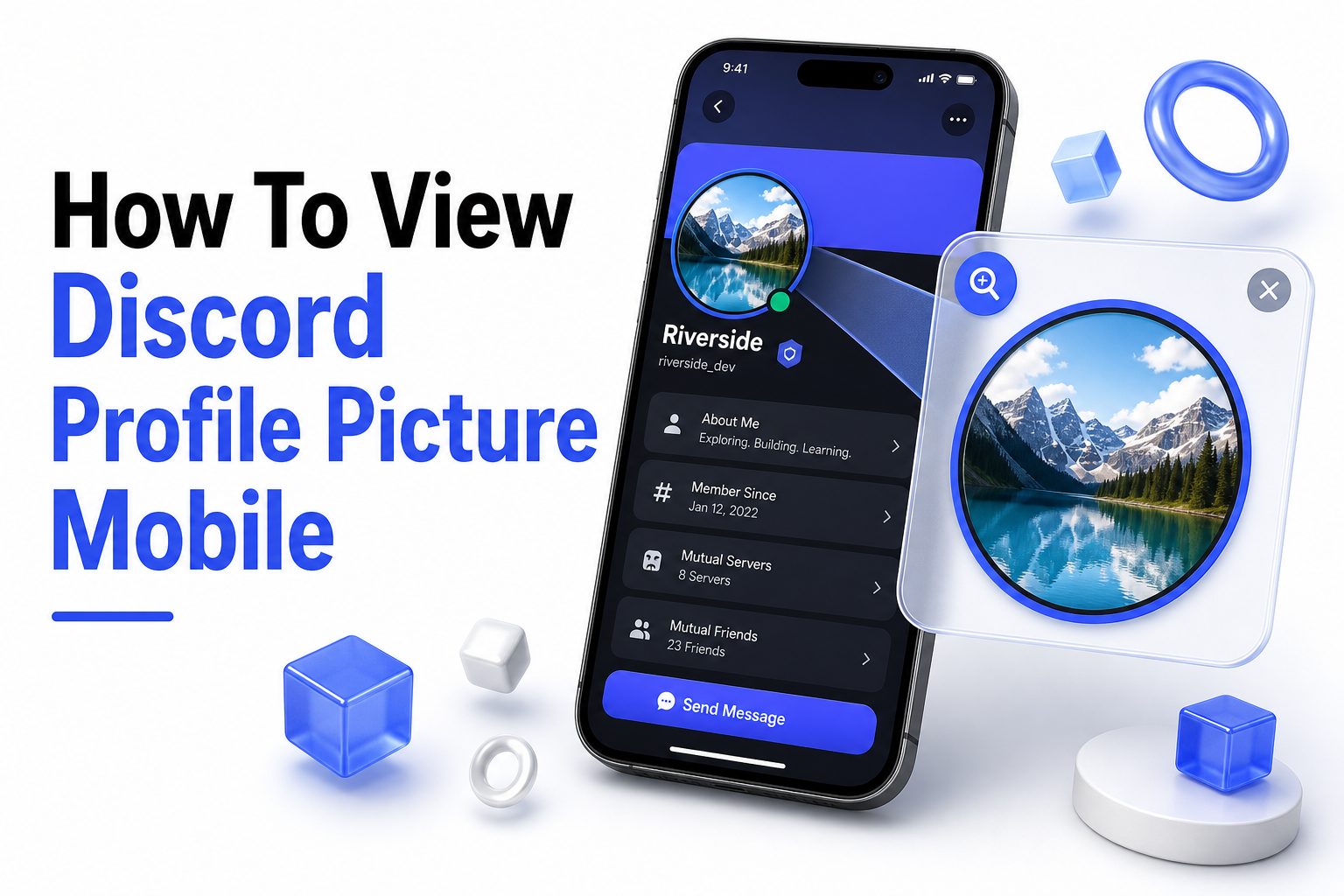
If you use Discord mostly from your phone, there is a good chance you have tapped on someone’s avatar and wished the profile picture were easier to see. Small circular icons can hide details, especially in busy servers, group chats, or direct messages where people use detailed artwork, logos, selfies, or animated avatars. That is why many users search for how to view discord profile picture mobile and expect a quick, practical answer.
The mobile app does let you open profile cards, view avatars more clearly, and inspect basic profile details, but the exact options can depend on where you tap, whether you are in a server or DM, and what privacy settings the other person uses. This guide explains the cleanest ways to view a Discord profile picture on iPhone and Android, what to do when the image will not open properly, and what limits are normal inside Discord’s mobile experience.
Viewing Discord Profile Pictures on Mobile
Discord profile pictures appear in messages, member lists, friend lists, DMs, and profile cards. On mobile, the fastest method is usually to tap the person’s avatar directly from a message or member list, then open their profile card for a larger preview.
The image you see may be a global avatar or a server-specific avatar. Nitro users can customize profiles for individual servers, so the picture shown in one community may be different from the one displayed in private messages or another server.
Using a Message to Open the Avatar
When someone has sent a message, tap their circular profile picture beside the message. Discord will open a compact profile view that shows their display name, avatar, status, mutual servers, and other visible profile details depending on privacy settings.
From there, tap the avatar area again if the app allows a closer view. Some mobile versions show the image larger inside the profile card, while others keep it within the card layout without a separate full-screen viewer.
Quick Checks Before You Start
Make sure you are using the latest version of Discord from the App Store or Google Play.
Try viewing the avatar from both a server message and a direct message.
Check your internet connection if profile images load slowly or stay blurred.
Restart the app if avatars appear blank or outdated.
Respect privacy settings and avoid using third-party tools that ask for your Discord login.
How to View a Discord Profile Picture from a Server
In a server, open the channel where the user has posted or open the member list if you can access it. Tap the person’s avatar or username to bring up their server profile card on your phone.
Server profiles can show custom nicknames, server avatars, roles, and other community-specific details. If someone uses a per-server avatar, that is the image Discord intends other members of that server to see in that context.
Opening a User from the Member List
Swipe or tap into the server’s member list, then select the user you want to check. This is useful when the person has not recently sent a message, or when their last message is buried far up the channel.
Once the profile card opens, look at the avatar at the top of the card. On many mobile layouts, this gives a noticeably larger view than the tiny message icon, even if it is not a downloadable full-resolution image.
Server View Versus Direct Message View
Server view may show a nickname, server avatar, roles, and server-specific profile details.
Direct message view usually focuses on the user’s main account identity and friend-related options.
Some profile details may be hidden based on Discord’s privacy controls.
A Nitro user may appear different across different servers.
If the profile looks different than expected, you may be seeing a per-server profile rather than the user’s main profile.
How to View a Discord Profile Picture from Direct Messages
If you already have a DM open with the person, tap their avatar at the top of the conversation or beside one of their messages. Discord will open their profile card, usually showing their main avatar rather than a server-specific version.
Direct messages are often the cleanest place to check someone’s main profile image. Since there is no server context, the app generally displays the account profile attached to the conversation rather than a role-based or community-specific identity.
Viewing a Friend’s Avatar from Your Friends List
Open the Friends area in the Discord mobile app and select the person’s profile. Tap their name or avatar to open the profile card, where their profile picture appears larger than it does in the list.
This method works best for friends and recent contacts. If the user is not your friend, you may need to find them through a shared server, a previous DM, or a message they have already sent.
Viewing Your Own Discord Profile Picture on Mobile
To view your own profile picture, tap the You bar or your avatar in the lower area of the Discord mobile app. Your profile opens with your avatar, display name, status, and profile editing options.
Tap Edit Profile if you want to preview or change your image. Discord’s mobile profile editor lets you adjust your avatar, display name, banner, and other profile elements, depending on your account features and Nitro status.
Changing Your Avatar While Previewing It
Inside Edit Profile, tap your current avatar or the Change Avatar option. Choose an image from your phone, adjust the crop, preview the result, then save changes if it looks right.
This preview is useful because Discord avatars appear in a circular frame across most of the app. An image that looks good in your gallery may need tighter cropping to stay clear in message threads and member lists.
Profile Picture Quality Tips
Use a square image for cleaner cropping.
Keep important details near the center of the picture.
Avoid tiny text because it becomes unreadable in chat.
Choose stronger contrast if the image looks muddy in dark mode.
Preview the avatar before saving it.
Use PNG for crisp logos or illustrations when possible.
Why Some Discord Profile Pictures Look Different
A Discord profile picture may look different because users can have custom profiles. A person may use one avatar for their main profile and another for a specific server, especially if they subscribe to Nitro.
This can confuse mobile users because the app may show a server profile when you tap someone inside a server. If you open the same person in DMs, you may see a different avatar, display name, or profile style.
The Role of Profile Privacy Settings
Discord’s profile privacy settings can limit which profile details others can see. According to Discord Support, some details can be hidden, while basic identity elements such as avatar, display name, username, banner, and mutual connections may still remain visible.
That means you may be able to view someone’s profile picture even when other profile fields are restricted. However, privacy settings, blocked accounts, server permissions, and app layout changes can still affect what appears on mobile.
Common Reasons an Avatar Looks Different
The user has a server-specific profile.
You are viewing them from a server instead of a DM.
Their profile privacy settings limit visible details.
The app cache is showing an older image.
The user recently changed their avatar.
Your Discord app needs an update.
Animated Discord Profile Pictures on Mobile
Some Discord users have animated avatars, usually through Nitro. On mobile, these may appear as moving images in certain profile views, but they may also show as a still frame depending on app performance, connection, and where the avatar appears.
If the animation does not play, open the full profile card and wait a moment. Animated avatars can take longer to load, especially on weaker mobile networks or when Discord is refreshing many images in a large server.
Why GIF Avatars May Not Animate
GIF avatars do not always animate in every small preview location. Message lists, member lists, and compact cards may show a static version to reduce visual clutter and improve performance on mobile devices.
If you want to check whether an avatar is animated, open the user’s profile card from a DM or server. If it still does not animate, the image may be static, the connection may be slow, or the app may be limiting playback.
Mobile Avatar Viewing Comparison
Location: Server message
Best for: Quickly opening a user profile
Possible limit: May show server-specific avatar
Location: Member list
Best for: Finding users who have not posted recently
Possible limit: Requires access to the server member list
Location: Direct message
Best for: Viewing the main account profile
Possible limit: Requires an existing DM or friend connection
Location: Friends list
Best for: Checking saved contacts
Possible limit: Only works for friends or visible contacts
Location: Your profile
Best for: Previewing your own avatar
Possible limit: Editing options vary by account features
Saving or Downloading Discord Profile Pictures on Mobile
Discord’s mobile app is mainly designed for viewing profiles, not downloading other people’s avatars. Depending on the app version and operating system, long-pressing the image may not provide a save option.
Screenshots are technically possible on most phones, but they reduce image quality and may capture surrounding profile information. Be mindful of privacy, especially if the profile includes names, mutual servers, status text, or personal profile content.
Safe Ways to Use Avatar Images
If you need someone’s profile picture for a legitimate reason, ask them to send the image directly. This is the cleanest option and avoids privacy concerns, low-quality screenshots, or confusion over server-specific avatars.
Avoid websites or tools that promise to download Discord avatars after you enter your token, password, or account details. Those tools can compromise your account and may violate Discord’s rules or basic safety practices.
Safer Alternatives
Ask the user to send the original image.
Use Discord’s built-in profile view whenever possible.
Avoid logging into third-party avatar download websites.
Do not share someone’s avatar outside Discord without permission.
Crop screenshots carefully if you are saving your own profile preview.
Troubleshooting Profile Pictures That Will Not Load
If Discord profile pictures are blurry, blank, or stuck on an old image, start with the basics. Close and reopen the app, switch between Wi-Fi and mobile data, and check whether other images load normally.
If the issue continues, update Discord from your app store. Mobile app changes can affect profile layouts, image loading, and caching, so an outdated version may behave differently from what other users see.
Clearing Cache and Refreshing the App
On Android, you may be able to clear Discord’s cache from your phone settings. This can fix stale avatars, missing default profile pictures, and profile images that refuse to refresh after someone changes them.
On iPhone, restarting the app or reinstalling Discord is often the cleaner route because cache controls are more limited. Before reinstalling, make sure you know your login details and have access to any required two-factor authentication method.
Troubleshooting Checklist
Update Discord from your official app store.
Close the app fully and reopen it.
Switch networks to test image loading.
Restart your phone if many app images are failing.
Clear cache on Android if avatars stay outdated.
Reinstall Discord only after checking your login access.
Privacy and Etiquette When Viewing Profile Pictures
Discord avatars are public-facing identity markers inside the app, but that does not mean every use of them is appropriate. Viewing a profile picture is normal; copying, reposting, or using it to impersonate someone crosses a line.
Treat profile pictures like personal profile content. If the image belongs to another person, a private friend group, or a small server community, ask before reusing it elsewhere. Respect matters even when the image is easy to see.
Avoiding Impersonation and Misuse
Never use another person’s avatar to pretend to be them. Discord communities rely on names, avatars, roles, and account history to identify people, and copying someone’s appearance can create confusion or harm.
If you manage a server, encourage members to report impersonation rather than escalating publicly. Moderators can compare usernames, account ages, mutual servers, and role history to handle the issue more accurately.
Good Avatar Etiquette
View profiles for context, not harassment.
Ask before reusing someone’s image.
Do not create fake accounts using another person’s avatar.
Avoid posting screenshots that reveal private profile details.
Report impersonation through proper server or Discord channels.
Mobile Layout Changes to Know
Discord’s mobile interface changes over time, and profile access has shifted with updates such as the You bar. Current mobile navigation places your profile, status, and settings in a bottom area designed for quick access.
Because of these changes, older tutorials may mention buttons or tabs that no longer appear in the same place. If an instruction does not match your screen, look for the avatar, profile card, You bar, or Edit Profile option instead.
Why Tutorials Become Outdated
Discord tests layouts in different regions and rolls out interface changes gradually. Two users may have slightly different mobile screens even when both are using the same general version of the app.
For the most reliable details, check Discord’s official support pages when the app layout changes. You can also bookmark [Internal Link: Discord Mobile Settings Guide] for related mobile navigation tips and [Internal Link: Discord Privacy Settings] for profile visibility advice.
Best Practices for Clear Discord Profile Pictures
If your goal is to make your own profile picture easier for others to view, start with image clarity. A clean, centered subject will hold up better when Discord shrinks it into a small circle.
Avoid busy backgrounds, tiny writing, and important details near the corners. Since Discord crops avatars into circles, anything near the edge can disappear or look awkward in message threads.
Choosing a Better Avatar Image
Use a square image with strong lighting or contrast. For logos, keep the symbol large and centered. For selfies or character art, leave enough space around the face so the circular crop does not feel too tight.
Preview the image in both light and dark contexts if possible. Discord users may view your avatar across different themes, devices, and server layouts, so clear shape and contrast matter more than fine detail.
Avatar Quality Checklist
Use a centered square image.
Keep faces, logos, or symbols large.
Avoid text-heavy designs.
Test how it looks as a small circle.
Use contrast that works in dark mode.
Update the image if it looks blurry after upload.
Conclusion
Learning how to view discord profile picture mobile is mostly about knowing where to tap and what type of profile you are seeing. Messages, member lists, direct messages, and the Friends area can all open profile cards, but each one may show slightly different information depending on server profiles, Nitro features, privacy settings, and Discord’s current mobile layout.
For most users, the simplest method is to tap the avatar from a message or open the person through a DM for a clearer look at their main profile. If images do not load, update the app, refresh your connection, or clear the cache where possible. Just as important, use profile pictures respectfully. Viewing an avatar is a normal part of Discord, but saving, reposting, or copying someone’s identity should be handled with care and permission.
FAQ
Can I view a full-size Discord profile picture on mobile?
Discord mobile usually shows a larger avatar inside the profile card, but it may not offer a true full-size viewer. Tap the user’s avatar from a message, DM, or member list for the clearest in-app view.
Why does someone’s Discord avatar change in different?
They may be using a per-server profile, which lets Nitro users set different avatars or display names in different communities. A DM often shows the main account profile instead of the server-specific version.
Can I download a Discord profile picture from the mobile app?
Discord mobile does not always provide a direct download option for avatars. The safest approach is to ask the person for the original image instead of using risky third-party tools or low-quality screenshots.
Why are Discord profile pictures blurry on my phone?
Blurry avatars can come from slow internet, app cache issues, outdated app versions, or low-resolution uploaded images. Restart Discord, update the app, and test another connection to narrow down the cause.
Can privacy settings hide a Discord profile picture?
Discord privacy settings can hide some profile details, but avatars are generally still part of visible profile identity. What you can see may still depend on blocking, server context, profile privacy, and mobile app behavior.
0 Comments